ESP32 WiFi Troubleshooting
ESP32 WiFi not connecting: complete Arduino IDE fix guide
ESP32 WiFi failures are usually not mysterious. Most come from the wrong network band, one wrong character in the SSID or password, weak signal, router settings, unstable power, or project code that hides the real connection error.
Direct answer
If your ESP32 is not connecting to WiFi, first confirm the exact SSID and password, use a 2.4 GHz WiFi network, move the board close to the router, power it from a stable USB cable or supply, and run a minimal WiFi test sketch before adding sensors, displays, relays, MQTT, or web server code.
Symptoms and likely causes
| Symptom | Most likely cause | First fix to try |
|---|---|---|
| ESP32 stays disconnected forever | Wrong SSID/password, 5 GHz network, or router block | Use a simple 2.4 GHz hotspot and minimal WiFi sketch |
| Works on phone hotspot but not home router | Router security, band steering, DHCP, MAC filtering, or captive portal | Create a separate 2.4 GHz WPA2 SSID for testing |
| Connects, then disconnects repeatedly | Weak signal, unstable power, WiFi sleep, or blocking code | Move close to router and test with WiFi-only code |
| WiFi works alone but fails with relay or sensor | Power dip, GPIO conflict, memory issue, or noisy wiring | Separate power loads and add modules back one by one |
| Code gets IP but cloud/MQTT fails | Internet, DNS, server URL, port, SSL time, or firewall issue | Print local IP, gateway, DNS, and test plain HTTP first |
ESP32 WiFi checklist
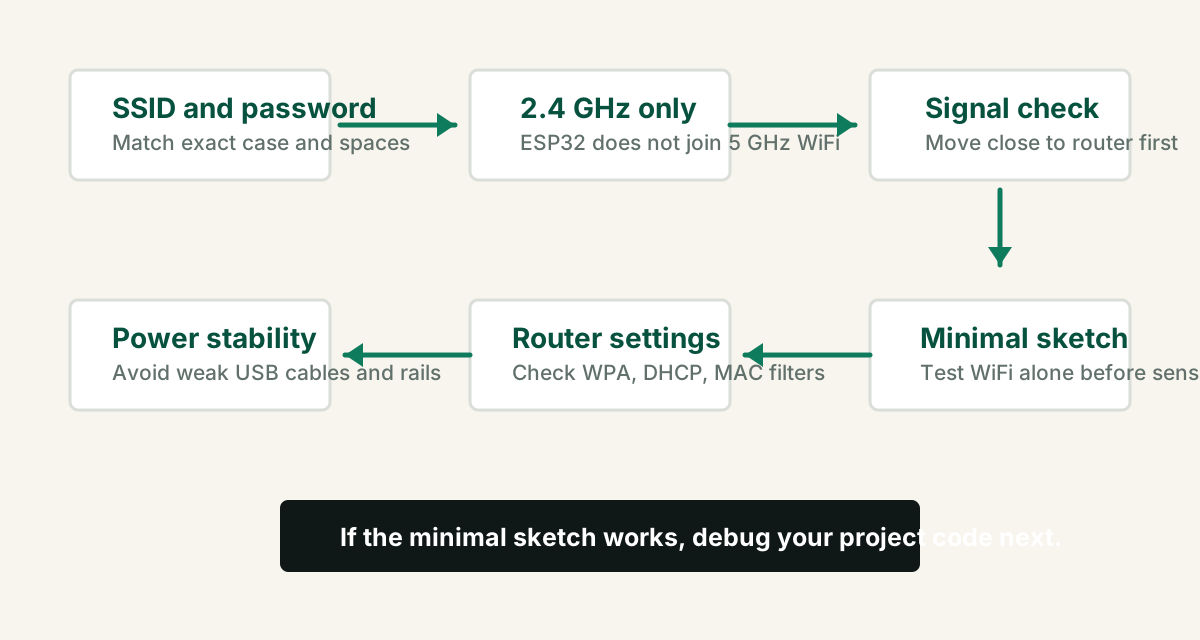
- Check SSID and password exactly. WiFi names and passwords are case-sensitive.
- Use 2.4 GHz WiFi. Most ESP32 boards do not connect to 5 GHz networks.
- Move the ESP32 close to the router for the first test.
- Use a stable USB cable and avoid powering heavy modules from the ESP32 board.
- Avoid college, office, hotel, or public WiFi with captive login pages for first tests.
- Disable MAC filtering while testing, or add the ESP32 MAC address to the router allowlist.
- Run WiFi-only code before adding displays, sensors, relays, GSM modules, MQTT, or web servers.
ESP32 WiFi status codes
Printing `WiFi.status()` helps you stop guessing. Use the status as a clue, then confirm with router and power checks.
| Status | Meaning | What to check |
|---|---|---|
| WL_IDLE_STATUS | WiFi is changing state | Wait briefly, then print more debug output |
| WL_NO_SSID_AVAIL | Network name not found | SSID spelling, 2.4 GHz band, signal range |
| WL_CONNECT_FAILED | Connection attempt failed | Password, security mode, router settings |
| WL_CONNECTION_LOST | Connection dropped | Signal, power, sleep mode, noisy wiring |
| WL_CONNECTED | ESP32 joined WiFi | Then debug IP, DNS, cloud, API, or MQTT issues |
Minimal ESP32 WiFi test code
Upload this before testing your full project. If this fails, do not debug your sensor, display, relay, MQTT, Firebase, Blynk, or web server code yet.
#include <WiFi.h>

const char* ssid = "YOUR_2_4_GHZ_WIFI_NAME";
const char* password = "YOUR_WIFI_PASSWORD";

void setup() {
  Serial.begin(115200);
  delay(1000);

  WiFi.mode(WIFI_STA);
  WiFi.begin(ssid, password);

  Serial.print("Connecting");
  unsigned long startAttempt = millis();

  while (WiFi.status() != WL_CONNECTED && millis() - startAttempt < 20000) {
    Serial.print(".");
    delay(500);
  }

  Serial.println();

  if (WiFi.status() == WL_CONNECTED) {
    Serial.print("Connected. IP: ");
    Serial.println(WiFi.localIP());
    Serial.print("RSSI: ");
    Serial.println(WiFi.RSSI());
  } else {
    Serial.print("Failed. Status: ");
    Serial.println(WiFi.status());
  }
}

void loop() {}If RSSI is very low or unstable, fix distance, antenna orientation, enclosure, and router placement before changing application code.
Router and hotspot checks
If your ESP32 connects to a phone hotspot but not your main router, the board is probably fine. The router configuration is the problem.
- Create a separate 2.4 GHz SSID instead of relying on combined 2.4 GHz / 5 GHz band steering.
- Use WPA2-Personal for testing. Avoid enterprise WiFi and captive portal networks.
- Make sure DHCP is enabled and the router still has available IP addresses.
- Disable MAC filtering temporarily, or add the ESP32 MAC address.
- Avoid special characters in the test SSID/password until the basic connection is proven.
- Restart the router if many devices are connected and DHCP leases look stuck.
When WiFi works alone but fails in your project
This is common in ESP32 builds with OLED displays, relays, sensors, web dashboards, or cloud services. The WiFi layer works, but another part of the project creates timing, memory, power, or pin conflicts.
Weak USB cables and noisy relay loads can cause resets or drops.
Long delays, stuck sensor reads, or reconnect loops can break timing.
Web servers, JSON, display buffers, and TLS can consume memory quickly.
FAQ
Why is my ESP32 not connecting to WiFi?
The most common causes are wrong SSID or password, trying to use a 5 GHz WiFi network, weak signal, router security incompatibility, DHCP problems, weak power, or project code that blocks the WiFi connection.
Can ESP32 connect to 5 GHz WiFi?
Most common ESP32 development boards connect to 2.4 GHz WiFi, not 5 GHz WiFi. Use a 2.4 GHz network or enable a separate 2.4 GHz SSID on your router.
Why does ESP32 connect to hotspot but not router?
The router may be using band steering, unsupported security settings, MAC filtering, a captive portal, DHCP issues, or a combined SSID that pushes devices toward 5 GHz.
Should I use static IP on ESP32?
Use DHCP first because it is easier to debug. Add static IP only after basic WiFi connection is reliable and you understand your router gateway, subnet, and DNS settings.
Still stuck after the WiFi-only test?
Get the free Electronics Project Rescue Pack. It includes power, wiring, module, sensor, and breadboard-to-PCB checklists for ESP32 and Arduino projects.
Get the free rescue pack