ESP32 Upload Troubleshooting
ESP32 upload error: failed to connect and timed out fix guide
ESP32 upload errors usually happen before your code even runs. That means the problem is often USB, serial drivers, boot mode, board selection, or external wiring, not your project logic.
Direct answer
To fix ESP32 upload errors, use a known USB data cable, select the correct ESP32 board and COM port, install the CP210x or CH340 driver if needed, hold the BOOT button when the upload starts, reduce upload speed, and disconnect external wiring from GPIO0, EN, RX, TX, and other boot-sensitive pins.
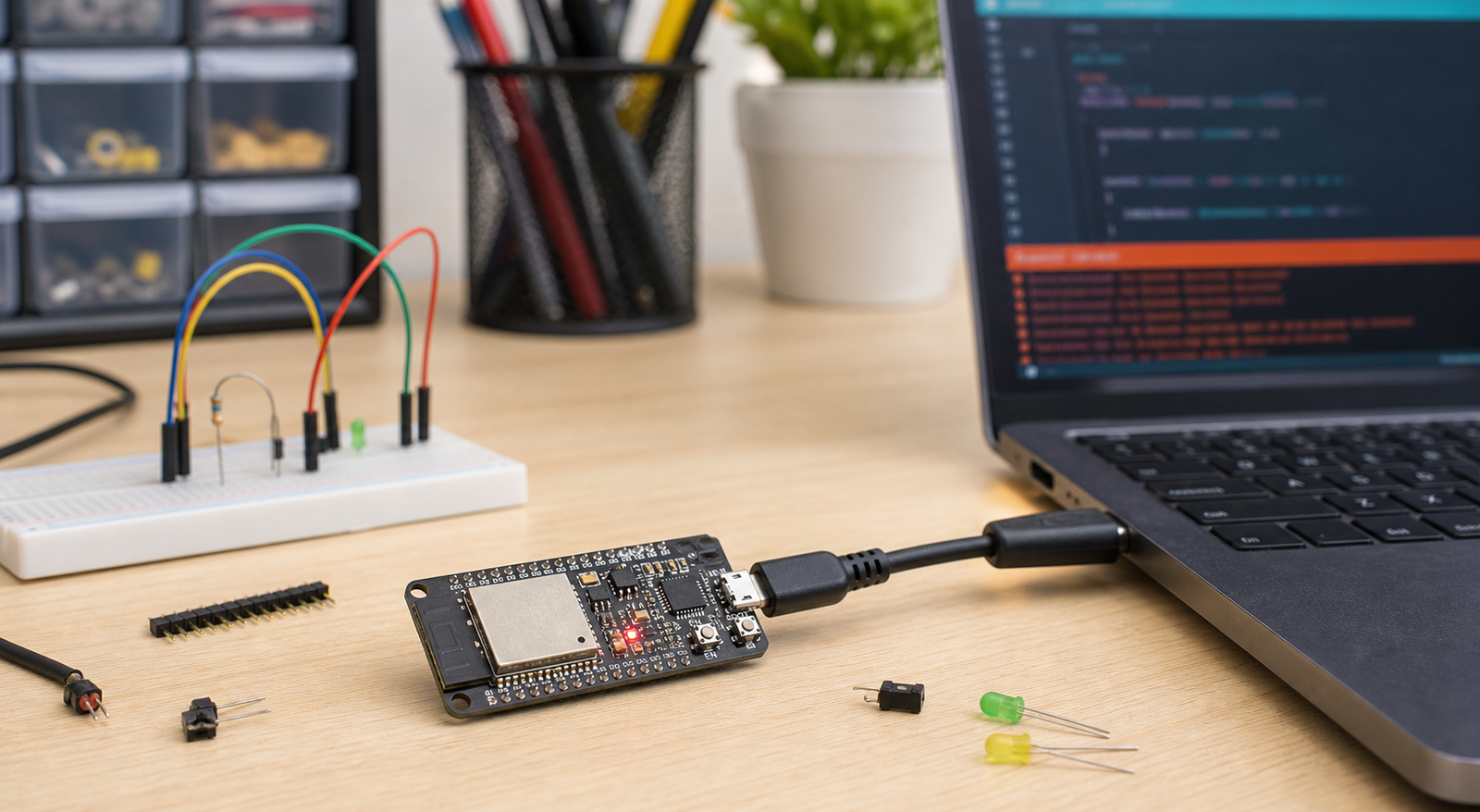
Common ESP32 upload errors and likely causes
| Error or symptom | Most likely cause | First fix to try |
|---|---|---|
| Failed to connect to ESP32 | Board not in bootloader mode, wrong port, cable, or wiring issue | Hold BOOT while upload starts and use a known data cable |
| Timed out waiting for packet header | Auto-reset failed, BOOT not held, GPIO0 wiring, weak serial connection | Press BOOT, lower upload speed, remove external wiring |
| COM port not showing | Charge-only cable, missing driver, bad USB port, or board not powered | Try another cable and install CP210x or CH340 driver |
| Wrong chip detected or invalid head of packet | Wrong board selected, unstable serial, bad cable, or wrong upload speed | Select matching ESP32 board and reduce upload speed |
| Upload starts only when external circuit is removed | Connected circuit is affecting boot or serial pins | Keep GPIO0, EN, RX, TX, and strapping pins clear during upload |
ESP32 upload fix order
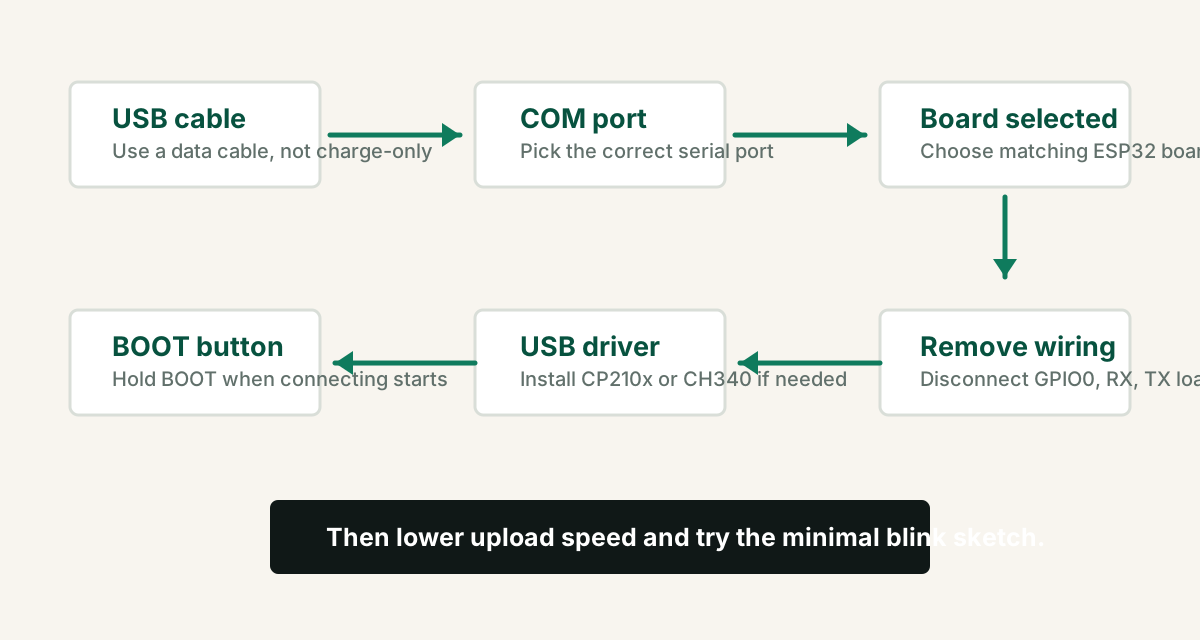
- Use a known USB data cable. Many charging cables cannot transfer serial data.
- Plug directly into the computer instead of a loose USB hub.
- Select the correct board in Arduino IDE, such as ESP32 Dev Module if you are using a generic board.
- Select the correct COM port or serial port.
- Open upload, then hold BOOT when Arduino IDE shows "Connecting..." if your board needs manual boot mode.
- Try upload speed 115200 if higher speeds fail.
- Disconnect external modules and upload a minimal blink sketch.
How to use the BOOT button
Some ESP32 boards enter download mode automatically. Others need help. If upload stalls at "Connecting...", hold the BOOT button until the upload begins writing, then release it.
Click Upload, wait for "Connecting...", hold BOOT, release BOOT when writing starts. If the board does not restart after upload, press EN or RESET once.
USB serial driver checks
ESP32 development boards commonly use USB-to-serial chips such as CP210x or CH340. If no COM port appears, Windows may need the correct driver.
- If the board uses CP2102 or CP2104, install the Silicon Labs CP210x driver.
- If the board uses CH340 or CH9102, install the matching WCH driver.
- After installing drivers, unplug and reconnect the ESP32.
- Check Device Manager for unknown USB devices or changing COM ports.
- Try another USB cable and another USB port before assuming the board is dead.
External wiring can block uploads
If your ESP32 uploads when bare but fails inside your project, the connected circuit is probably pulling a boot or serial pin into the wrong state.
External circuits on GPIO0 can prevent normal boot or upload mode.
Modules connected to UART0 can interfere with flashing.
Noise or external pull-downs can reset the board during upload.
Board selection and upload speed
In Arduino IDE, a generic ESP32 Dev Module selection often works for basic boards, but boards with PSRAM, S3, C3, or unusual flash settings may need a closer match. If upload begins but fails partway through, reduce the upload speed.
- Try 115200 upload speed for stubborn boards.
- Choose the correct ESP32 family: classic ESP32, S2, S3, C3, or C6 where relevant.
- Update the ESP32 board package if your board is newer.
- Use a minimal blink sketch to confirm upload before testing full project code.
FAQ
Why does ESP32 say failed to connect?
ESP32 failed to connect usually means the computer could not put the board into bootloader mode or communicate over serial. Common causes are charge-only USB cable, wrong COM port, missing driver, wrong board selection, not pressing BOOT, or external wiring on boot and serial pins.
How do I fix timed out waiting for packet header on ESP32?
Use a data USB cable, select the correct port, hold BOOT when upload starts, reduce upload speed, install the correct USB serial driver, and disconnect external wiring from GPIO0, EN, RX, TX, and boot-sensitive pins.
Why is my ESP32 COM port not showing?
The most common reasons are a charge-only cable, missing CP210x or CH340 driver, bad USB port, damaged cable, or a board with no power.
Do I need to press BOOT every time?
Some boards need manual BOOT because their auto-reset circuit is weak or missing. Many better dev boards enter upload mode automatically.
Upload works, but the project still fails?
Get the free Electronics Project Rescue Pack. It includes wiring, power, ESP32, sensor, relay, and breadboard-to-PCB checklists.
Get the free rescue pack