Arduino Display Troubleshooting
LCD 16x2 not displaying: Arduino I2C LCD fix guide
A 16x2 LCD that shows nothing, only black boxes, or random characters usually has a contrast, wiring, I2C address, library, or initialization problem.
Direct answer
If your 16x2 LCD is not displaying, adjust the contrast potentiometer first, confirm 5V and GND, run an I2C scanner to find 0x27 or 0x3F, check SDA/SCL wiring, install the correct LiquidCrystal_I2C library, and test with a minimal hello-world sketch.
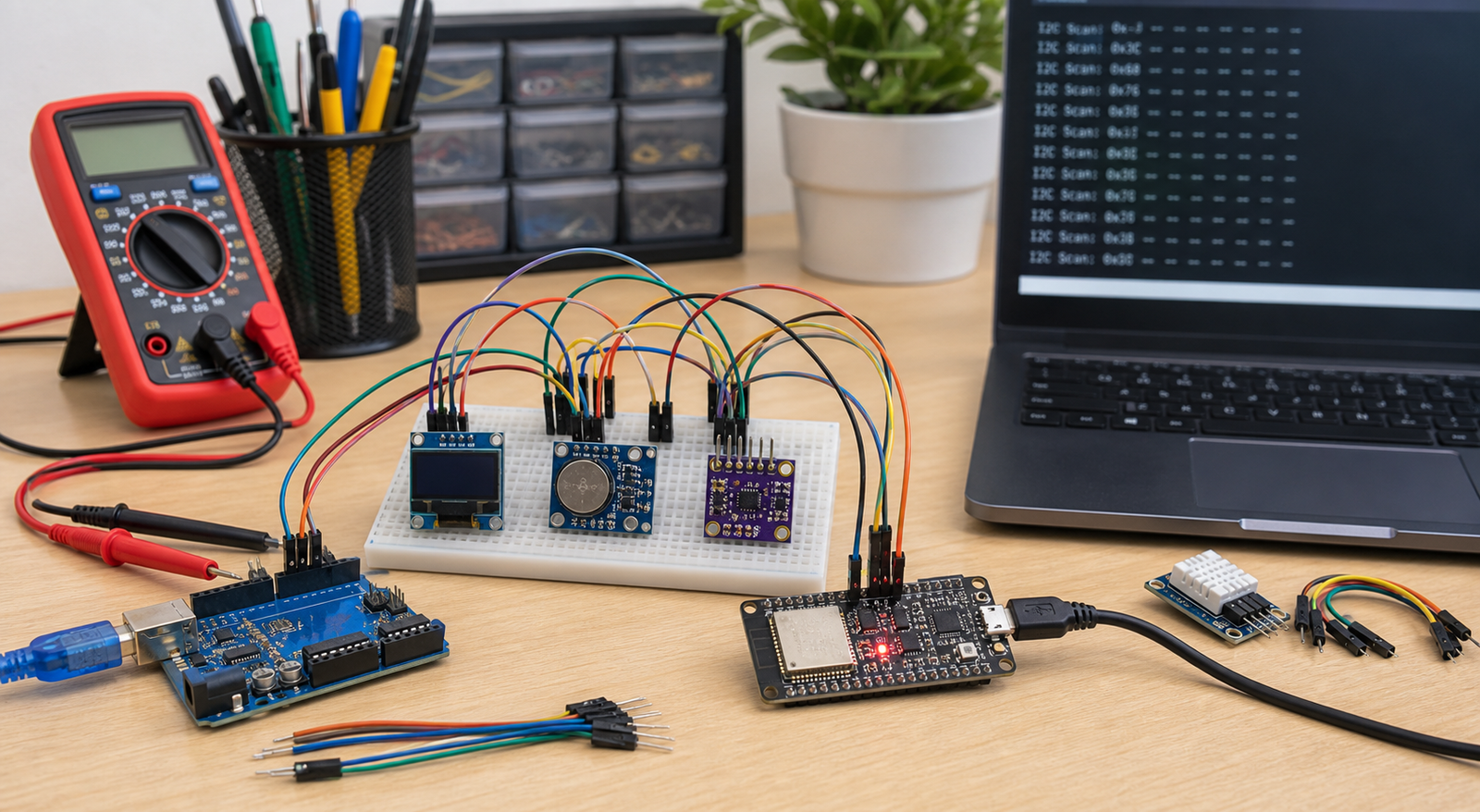
Symptoms and likely causes
| Symptom | Likely cause | First fix |
|---|---|---|
| Blank screen, backlight on | Contrast too low, wrong address, wrong library | Turn contrast pot slowly and scan I2C |
| Black boxes on first row | LCD powered but not initialized | Check code, address, SDA/SCL, library |
| I2C scanner finds nothing | Wrong wiring, no power, bad backpack, no common ground | Use the I2C device not found guide |
| Random characters | Loose wires, wrong library, unstable power | Shorten wires and run minimal sketch |
Adjust contrast first
On many I2C LCD backpacks, the tiny blue potentiometer controls contrast. Turn it slowly with a screwdriver. If contrast is too low, the display looks blank. If contrast is too high, you may see black blocks.
Find the real I2C address
Many tutorials assume address 0x27, but some LCD backpacks use 0x3F. Run an I2C scanner before changing libraries or rewiring the whole project. On Arduino Uno, SDA is A4 and SCL is A5. On ESP32, you may need to set pins explicitly with `Wire.begin(SDA, SCL)`.
Minimal LCD test code
#include <Wire.h>
#include <LiquidCrystal_I2C.h>

LiquidCrystal_I2C lcd(0x27, 16, 2);

void setup() {
  lcd.init();
  lcd.backlight();
  lcd.setCursor(0, 0);
  lcd.print("PCBVault");
  lcd.setCursor(0, 1);
  lcd.print("LCD test");
}

void loop() {
}
If your scanner reports 0x3F, replace 0x27 with 0x3F. Test this alone before adding sensors or menu code.
From Prototype to Product: Moving Beyond the Workbench
Adjusting a blue trim pot is fine for a prototype, but mechanical potentiometers can drift with vibration, and running a 5V LCD directly from 3.3V MCU lines can lead to failures. Productizing an LCD interface requires fixed contrast dividers, level shifting, and robust connector headers.
The Productization Path for character LCDs
FAQ
Why does my LCD show only black boxes?
The LCD has power but is not initialized correctly, or contrast is set too high. Check contrast, I2C address, library, and wiring.
Is my LCD address 0x27 or 0x3F?
You cannot know reliably from the listing. Run an I2C scanner and use the address it reports.
Ready to productize your design?
Get the free Electronics Project Rescue Pack. It includes power, wiring, module, sensor, and breadboard-to-PCB checklists to help you move from a messy prototype to a release-ready custom PCB.
Download the rescue pack